How To Print Multiple Files Through Multiple Printer?
Q.1. How to Register, Buy and Activate the software?
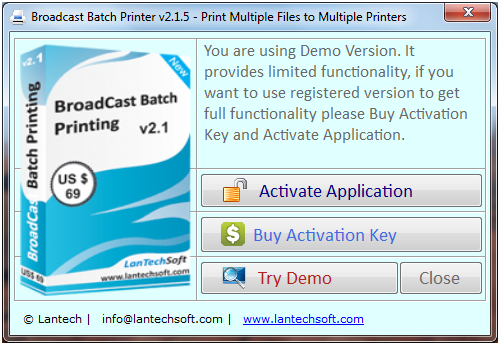
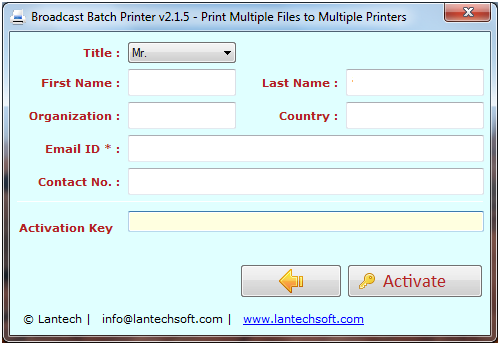
Register: To register the "BroadCast Batch Printing" click on the "Activate Application" Button and fill the Registration Detail with the Activation Code.
Buy : You have to Buy "BroadCast Batch Printing" to get Activation Code. You Can Buy it From our Site by Clicking on "Buy Activation Key" button.
Try Demo: You can use demo version of "BroadCast Batch Printing" by clicking on "Try Demo" Button.
Q.2. How to Add Files and Folders to the List?
- Select Files
- Set Printer And page Settings
- Press the 'Print' Button
- Help
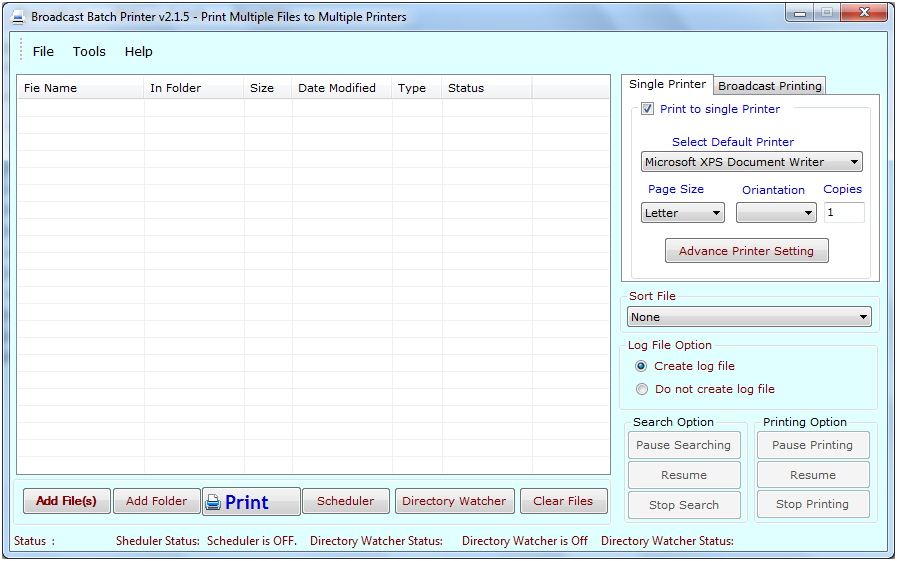
- Select Files : You can select files those you want to print or schedule to print by just click "Add Files" button on the main windows. if you want to add a whose folder's files, you can add a folder that contains all files of any printable formats for print by "Add Folder" button as shown below.

- Adding Files: There are many Options for add files from a folder... as

- Removing Files: To remove single file from "files list", just select that file and press 'Clear Selected' button or Press the Delete Key. If you want to remove all files from Files List just press 'Clear' button.
Q.3. How to Select Printer and Print all Selected Files?
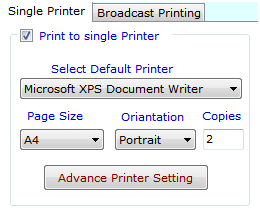
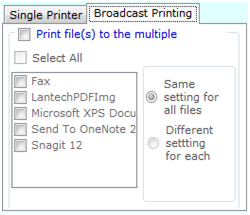
Printer Settings : You can change printer settings to print the document as per your requirement you can select any printer if you are working on a network or you can select multiple printer, you can set multiple printer to all files or you set diffrent printer for each file, to set diffrent printer for each file just select the file from the list and select the printer(s).
Q.4. How to Use Scheduler for Schedule Printing for all Selected Files?
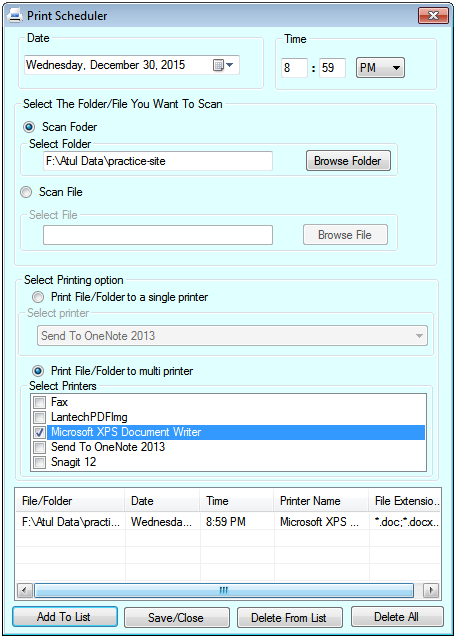
Scheduler:This tool support the scheduling printing of selected files for day, any time. please select the date and enter the time and printer to print your file, then please click ‘Add to List' Button to add your time in the sheduler then Press ‘Save/Close' Button' to save your date/time and option and close the scheduler
Q.5. How to use Directory Watcher?
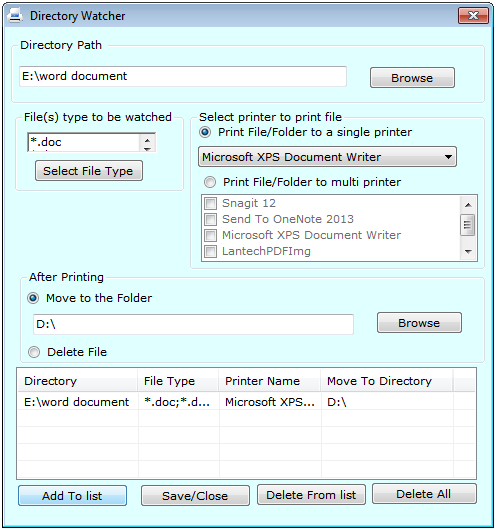
Directory Watcher : This tool monitor folders for Files and prints them to a specified printer to use 'Directory watcher' just select the folder and file type and set the printer to print the file.
Q.6. How to Create Log File?
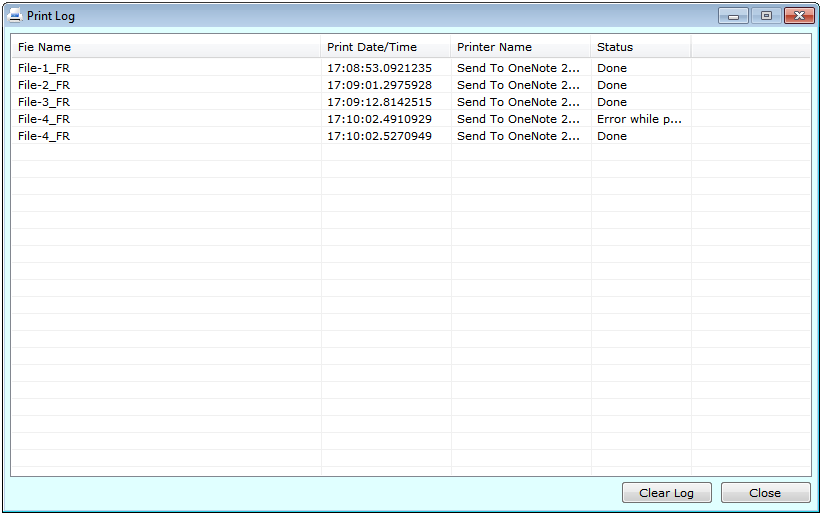
Log File: Log file keep the record of all the printing and not printing files.
Q.7. How to Deactivate Software to transfer to other PC?
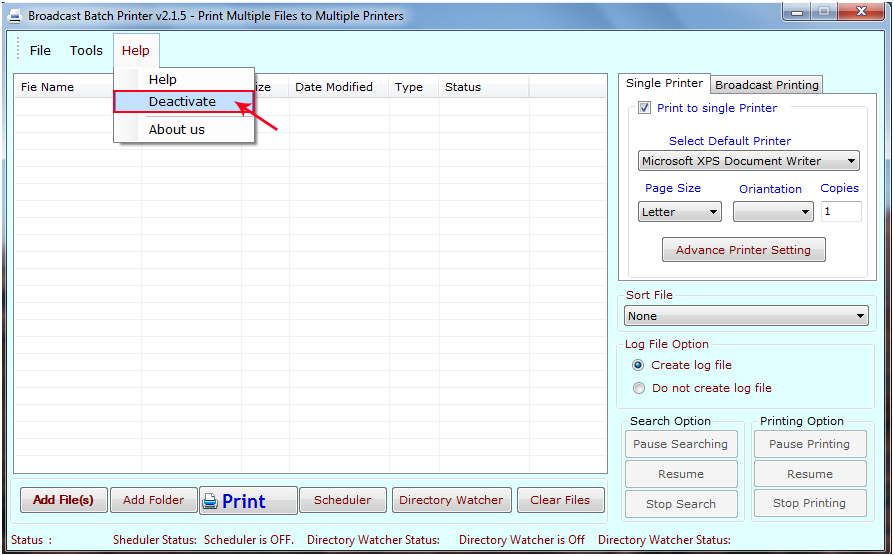
Step 1 : Go to Help Menu. Now click on Deactivate option.
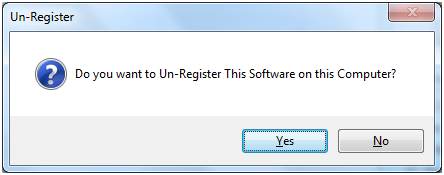
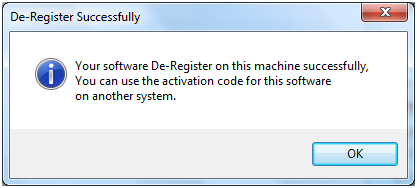
Step 2 : Deactivate from current PC.
Step 3 : Install the software on new PC and Register it with same Activation Key.